 SpokenFile
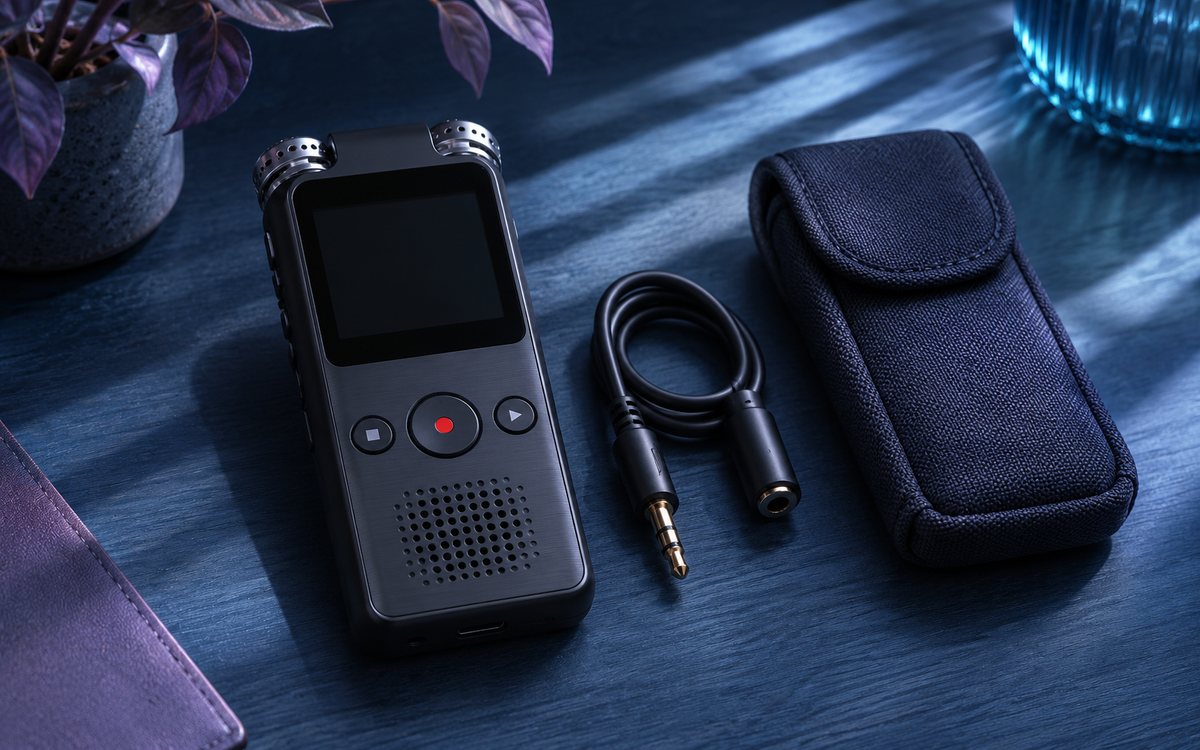
Start with a file you can play in its original location. Make one test import before moving a whole archive, especially if the originals include video or several audio formats.
Locate the source file
In Files, search for a distinctive part of the filename, open the containing folder and play a preview if available. If the file lives in another app, use that app’s export or sharing option to create an audio file you have permission to use. Keep the source until you have listened to the imported recording.
Bring in one representative example
Use SpokenFile’s import picker to select a compatible file. The app can also receive supported media through its share extension where the source app offers it. If the source contains video, SpokenFile imports the audio as AAC. The picture and original encoding stay with the source file.
Compare the beginning, middle and end
Open the imported item in Library. Compare the duration with the source, seek to a recognizable point in the middle, and play the last sentence. If the import fails, try playing the original and confirm it has finished downloading. Renaming a file extension does not convert its contents into a supported format.
Prepare the recording for its next use
Give the item a recognizable title and move it to the project folder. Select the spoken language before starting transcription. For a recording of a call someone has already saved, import the saved audio. This workflow works on an existing media file and requires access to that recording.